ONE APP. YOUR WHOLE LIBRARY.Live TVMovies & seriesProgramme guideAirPlay & CastOptional iCloud sync
LESS SEARCHING. MORE WATCHING.
Live TV, movies and your next episode.
Watch live TV, find a movie or pick up an episode where you left off. Your own source supplies the channels, titles and guide listings.
01 / LIVE TV
Find your next “just one more.”
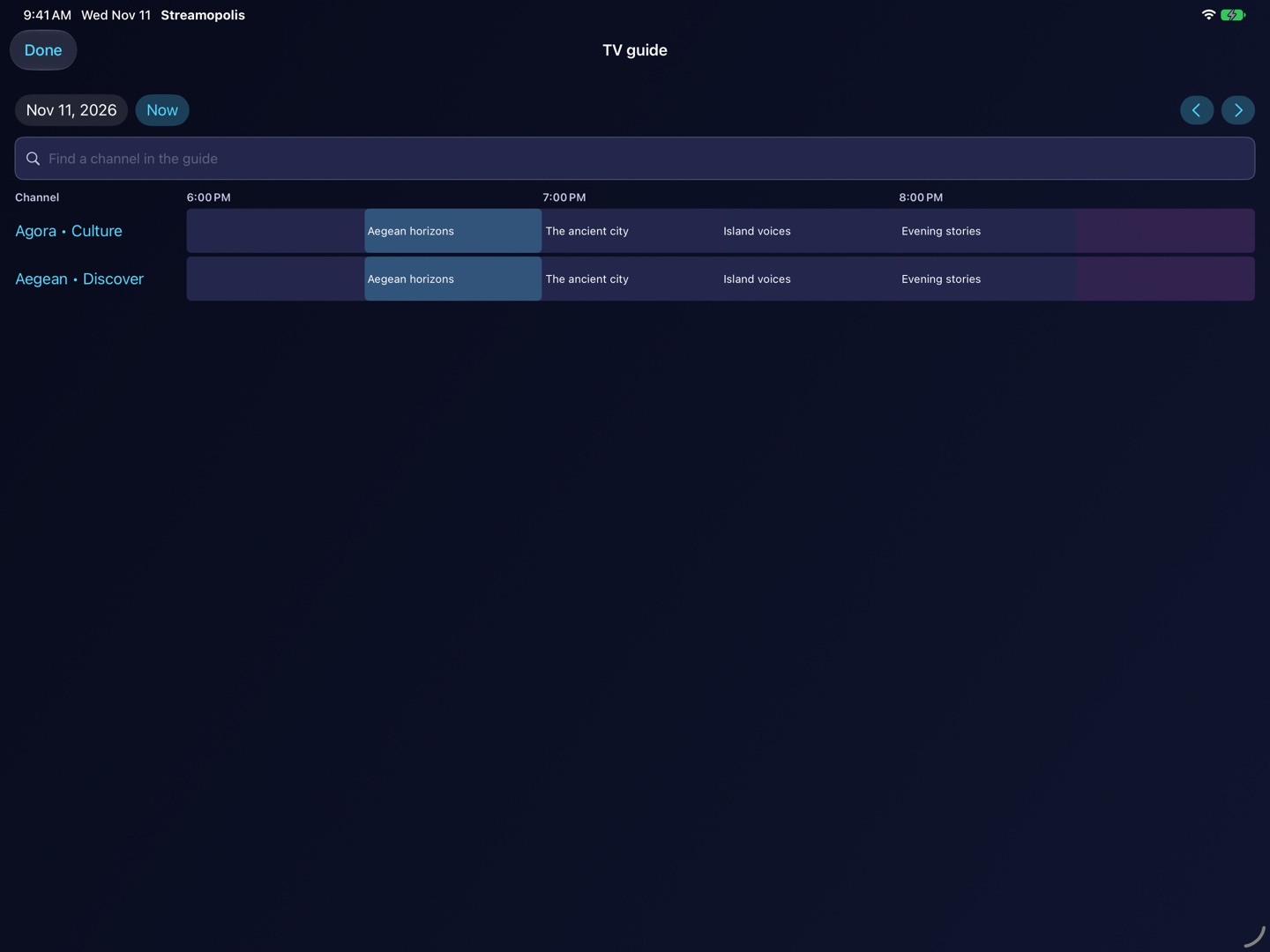
Preview a channel while you browse. See what’s on now and next, explore the programme guide and set a reminder for something worth catching.
The programme guide on iPad▻02 / MOVIES & SERIES
Your next episode is waiting.
Browse collections, explore seasons and pick up at your saved position. Favourites and viewing filters keep your library feeling like yours.
▱ ↗03 / THE BIG SCREEN
Small screen. Big possibilities.
Send compatible video to an AirPlay or Google Cast receiver. Keep playback controls close with the remote on your iPhone or iPad.
iPhone▰
↔
iCloud☁
↔
iPad▰
04 / YOUR LIBRARY, TOGETHER
A familiar place. On another device.
Choose optional iCloud sync for connection settings, favourites, history and watch progress. Export a backup through Files whenever you need one.
Available titles, guide listings, reminders, replay, audio, subtitles and casting depend on your source, stream and device.
THE FULL PICTURE
More of what makes it yours.
Explore the player controls, guide, library tools and connection options available on your device.
Connect your provider+
Connect a Stalker/MAG portal, sign in with Xtream Codes, add an M3U playlist by URL or file, or connect a Jellyfin server. Jellyfin Quick Connect is available on servers that support it.
Save multiple providers and give each one a name. On iPhone and iPad, Live TV and VOD show a folder for each enabled provider. Open a folder to browse that provider’s categories or choose All providers to see the combined library. Edit connection details or refresh an individual provider from Settings.
On iPhone and iPad, follow the timed setup when you add or import a provider. It loads channels, available guide data, and up to the first 20 titles in each visible movie and TV category. More titles load as you scroll.
On your next launch, Streamopolis checks the saved connection. Opening Live TV or VOD refreshes that catalogue. You can also refresh channels, the movie catalogue, or the guide on demand.
Live TV and the programme guide+
Browse channel groups, favourites, and recently watched channels. Search for a channel by name, filter for HD or 4K/UHD labels, or save a frequently used category search.
Tap a channel to preview it on iPhone or iPad. Tap the picture to watch full screen, then tap Back to keep watching the same stream in the preview. Leaving Live TV stops local preview playback.
See what’s on now and next. Browse the guide by channel, day, and time, read programme descriptions, and tune in from the guide. Streamopolis requests up to 48 hours of listings from your provider.
Use your provider’s guide or an XMLTV guide with a compatible playlist. Saved listings are available when you reopen the guide.
On iPhone or iPad, touch and hold a future programme to set a notification for its start time. Hold a channel name to choose a programme from its schedule.
With a supported Stalker archive, browse a channel’s past schedule and replay programmes your provider makes available.
Movies, series, and discovery+
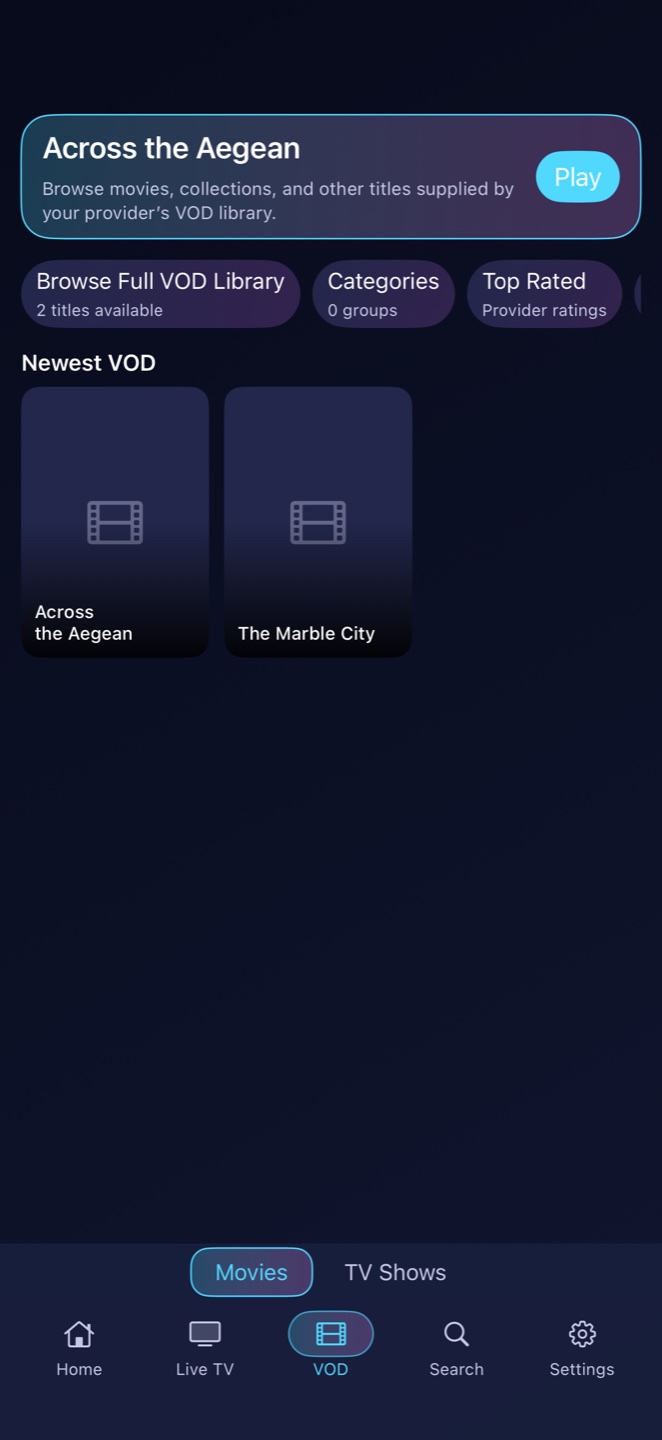
Browse Movies and TV Shows separately. Open a provider category to explore its full collection, or hide categories you don’t use.
Home brings together recent channels, newly added movies, updated series, favourites, and Continue Watching. Optional daily trending rows let you select a title and search for it in your library.
Browse posters, release years, ratings, descriptions, cast, and related titles where available. Select an actor to find other titles in your library. Supplemental artwork can fill gaps in provider listings.
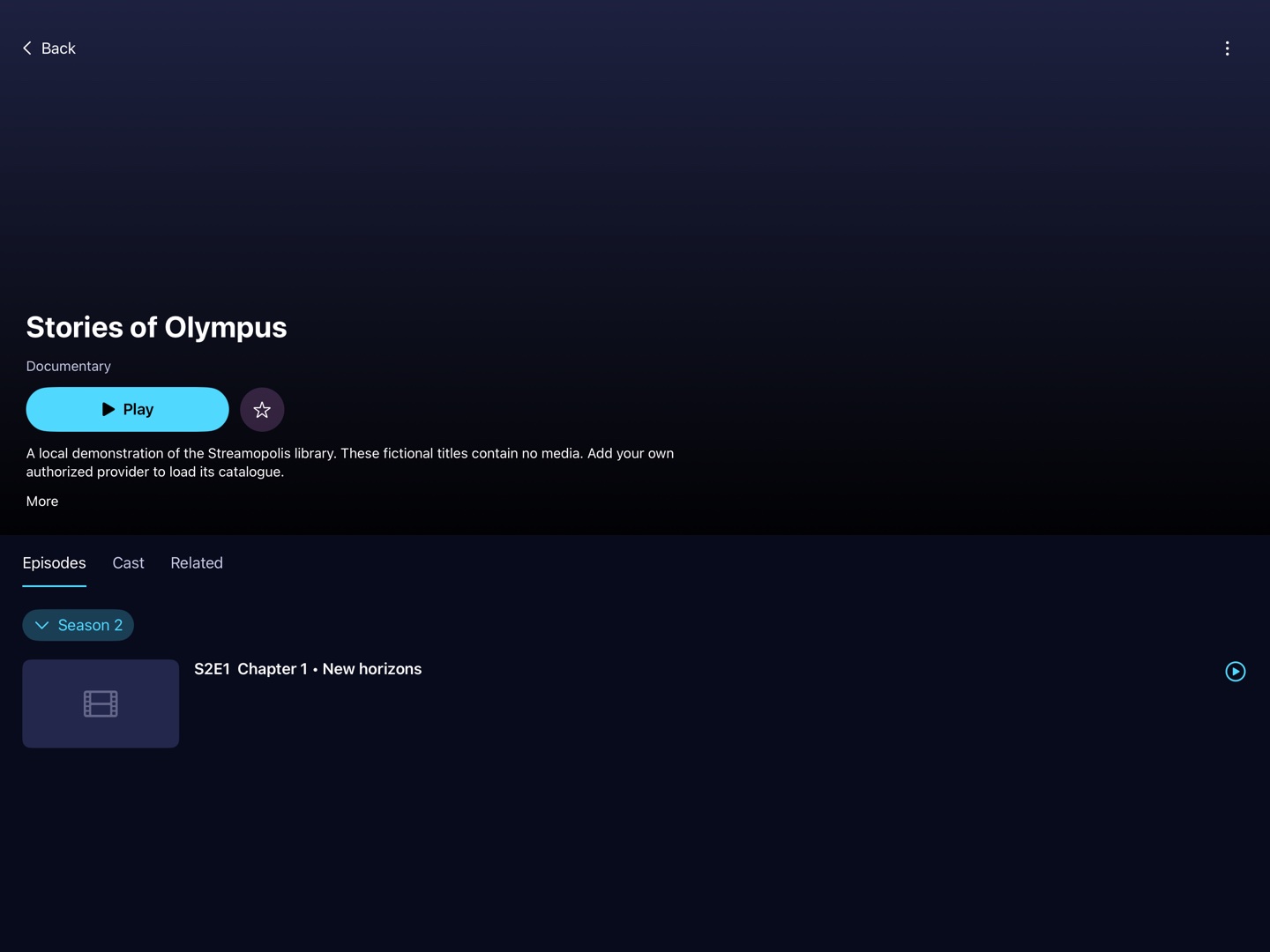
Open a series, choose a season, and play an episode. Resume a movie or episode from its saved position, or start from the beginning.
Filter for favourites, in-progress, unwatched, recent, or rated titles. Sort by title, release date, recent updates, rating, viewing activity, or your provider’s original order.
Search channels, movies, series, and programmes in the saved guide. Reuse a recent search or request more movie and series matches from a supported Stalker provider.
Player controls on iPhone and iPad+
Watch in portrait or landscape. In portrait, the live preview stays above the channel list. On wider landscape screens, browse groups, channels, and the preview side by side.
Adjust brightness and volume, choose Fit, Zoom, or Stretch, and switch between the audio tracks and subtitles supplied by the stream.
For on-demand video, scrub to a scene, skip forward or back 15 seconds, and adjust playback speed from 0.5× to 2×. For live TV, switch to the next or previous channel and open the guide from full screen.
Use Picture in Picture with supported streams in the Apple player. A built-in compatibility player handles additional stream formats. HD and 4K playback depend on the source and device.
Cast to a TV and use your phone as the remote+
Send compatible live channels and on-demand video to a TV with TV sound. Choose a video-capable Google Cast receiver inside Streamopolis or select an AirPlay TV in Control Center.
Use the on-screen remote on iPhone or iPad to pause, resume, change live channels, skip through a movie, mute, or adjust supported receiver volume.
Close the remote and keep watching on the TV. Stop a Google Cast session to disconnect, or use the local playback control to bring supported AirPlay video back to your iPhone or iPad.
Backups and library sync+
Provider logins are saved in the device Keychain. Optional iCloud library sync uses your private iCloud database for provider settings, favourites, history, and watch progress across devices using the same Apple Account.
Export or restore a backup through Files, including iCloud Drive. Review the providers in a backup before importing it.
Import compatible Streamopolis Android backups. The import can match favourites, recent viewing, and resume positions to titles in your Apple library.
Apple TV — coming later+
Coming later. These beta features are not part of the first iPhone and iPad public release.
Open Live TV directly to the programme grid. Select an on-air programme with the Siri Remote to watch it full screen.
Press Left during live playback to open the channel list over the picture. Choose another channel, or press Back to close the list and keep watching.
Scan the on-screen QR code to enter provider settings or send a playlist from a phone on the same Wi-Fi. You can also transfer a backup by QR code.
iPhone requires iOS 17 or later. iPad requires iPadOS 17 or later. The Apple TV beta requires tvOS 17 or later and is coming after the initial release. Guide coverage, catch-up, available titles, audio tracks, subtitles and casting compatibility vary by provider, stream and device.
YOUR FIRST FIVE MINUTES
Settle in. Press play.
One download for iPhone and iPad. A familiar experience wherever you watch.
01
Make it yours.
When the app launches, download Streamopolis and choose the free 48-hour trial or lifetime unlock.
02
Bring your library.
Choose a connection type, enter its settings or import a compatible file. The initial sync loads channels, guide data and the first titles in visible categories. More titles load as you browse.
03
Find your moment.
Preview a channel, browse a collection or find your next episode. Add another connection whenever you like.
FROM THE APP
Made for the screen in your hands.
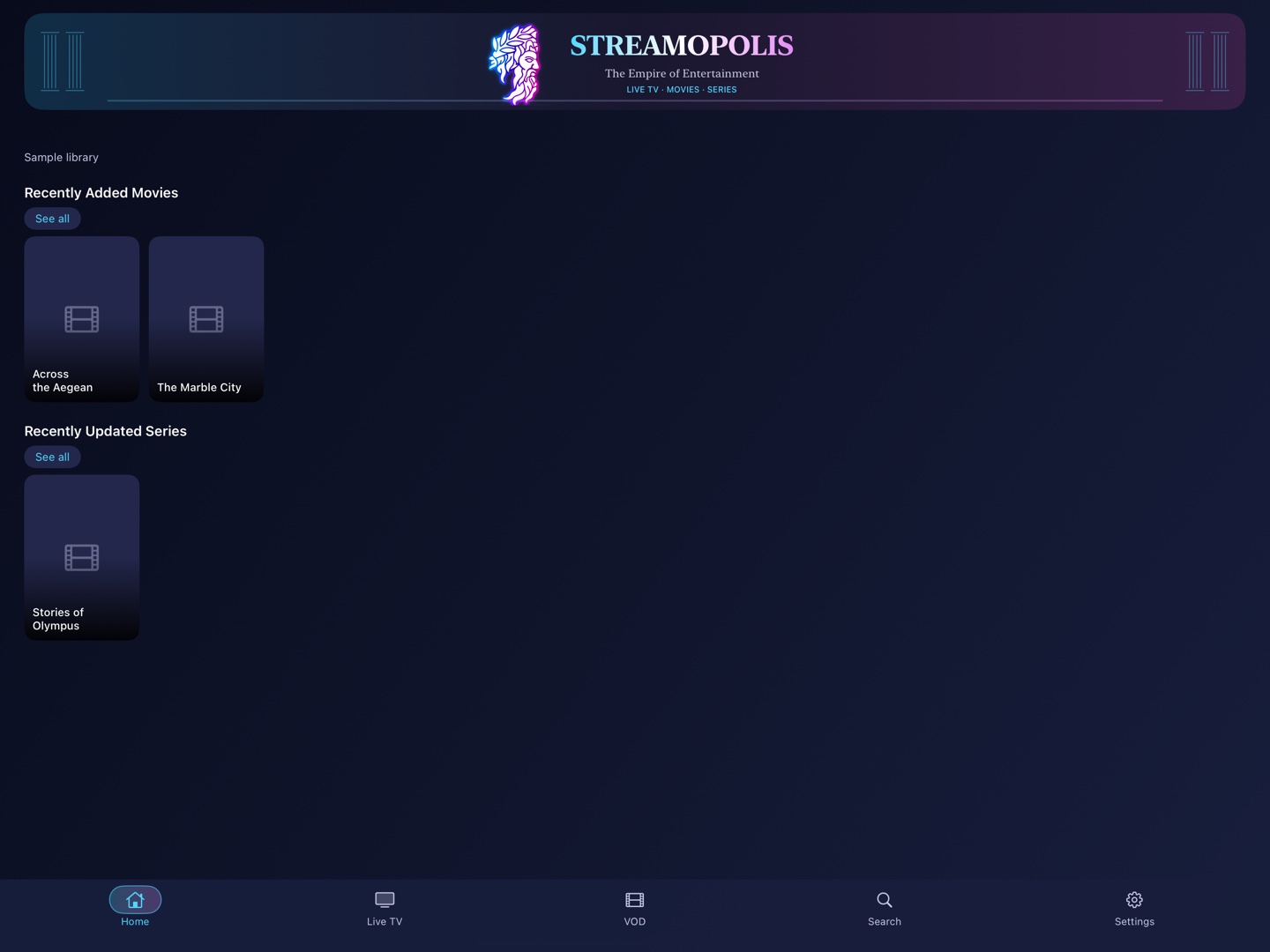
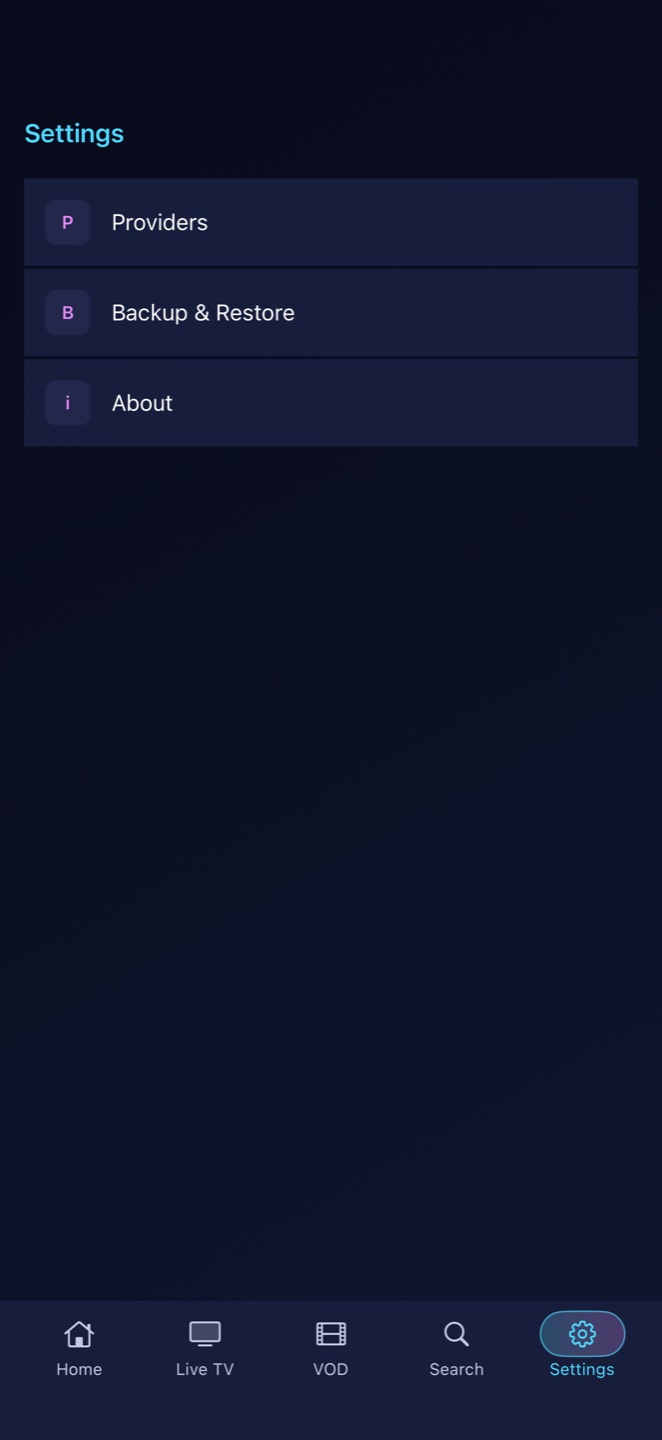
See the actual iPhone and iPad layouts, from your home library to series and settings.
Your home on iPadSeasons & episodesMovies on iPhoneSettings on iPhone
Screenshots show the sample library. Tap an image to view it at full size.
 STREAMOPOLISThe Empire of EntertainmentComing soon ↗